Tapsell Ads Settings in the ServerNet Panel
To use the Tapsell ads plugin, you first need to add it to your app.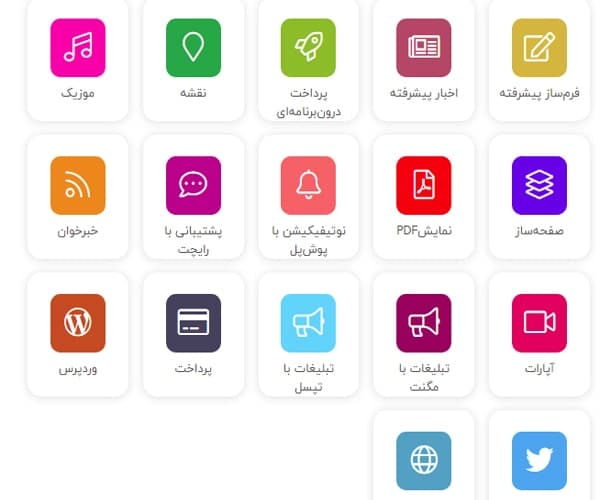 Setting up in-app advertising
Now it's time to configure the Tapsell ads plugin.
Setting up in-app advertising
Now it's time to configure the Tapsell ads plugin.
 Setting up in-app advertising
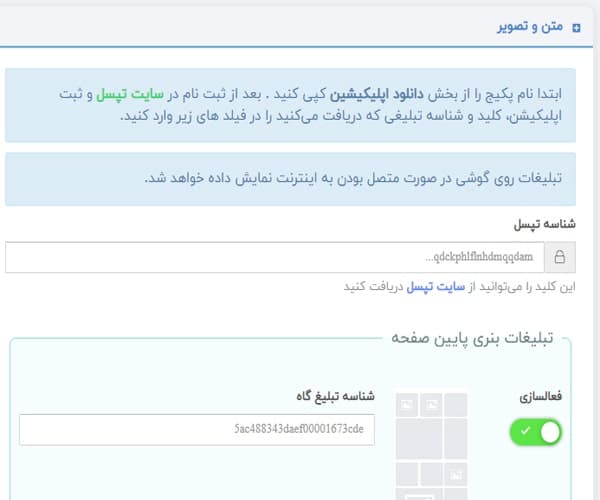
Number 1: In this section, you need to enter the ID that the Tapsell website gives you after you register your app .
We'll go over how to get it below.
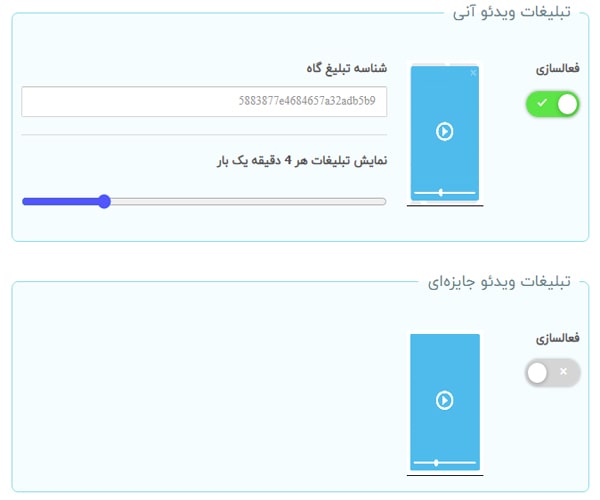
Number 2: Tapsell ads supports various types, but on the ServerNet website, we only offer 3 types of these ads.
You can activate whichever of these ads you want.
I'll teach you how to get the ad zone ID from the Tapsell website below.
Registering on the Tapsell Ads Website:
Alright, let's head over to the Tapsell website and review its settings together.
Setting up in-app advertising
Number 1: In this section, you need to enter the ID that the Tapsell website gives you after you register your app .
We'll go over how to get it below.
Number 2: Tapsell ads supports various types, but on the ServerNet website, we only offer 3 types of these ads.
You can activate whichever of these ads you want.
I'll teach you how to get the ad zone ID from the Tapsell website below.
Registering on the Tapsell Ads Website:
Alright, let's head over to the Tapsell website and review its settings together.
 Setting up in-app advertising
We need to log in to the Tapsell ads panel. If you don't have an account, you'll need to create one; otherwise, just log in.
Setting up in-app advertising
We need to log in to the Tapsell ads panel. If you don't have an account, you'll need to create one; otherwise, just log in.
 Setting up in-app advertising
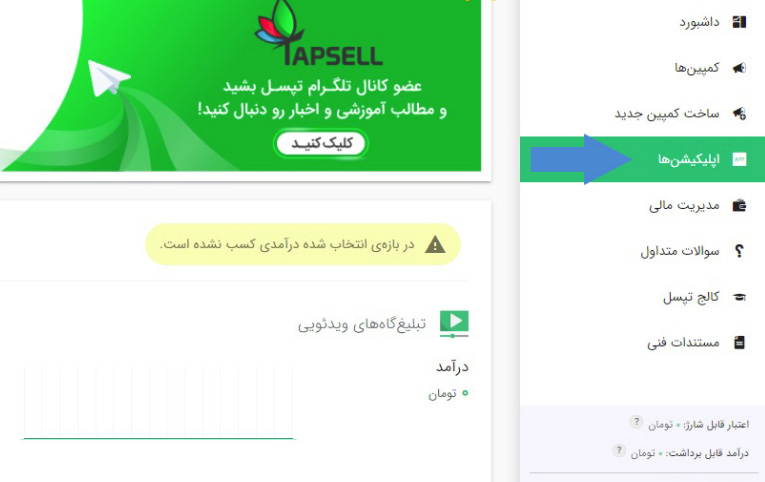
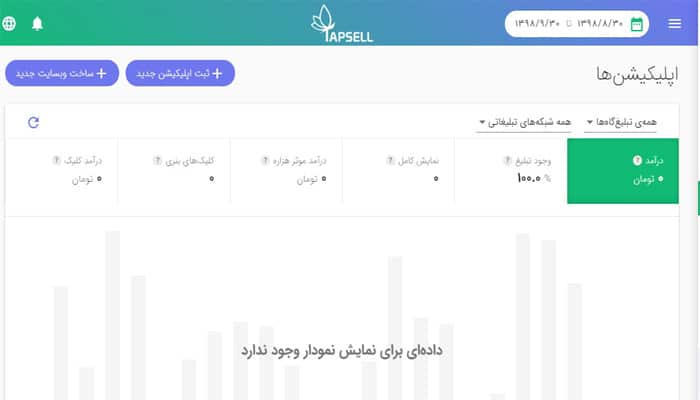
After logging into the Tapsell panel, you'll see the page below, where you need to click on the "App" button.
Setting up in-app advertising
After logging into the Tapsell panel, you'll see the page below, where you need to click on the "App" button.
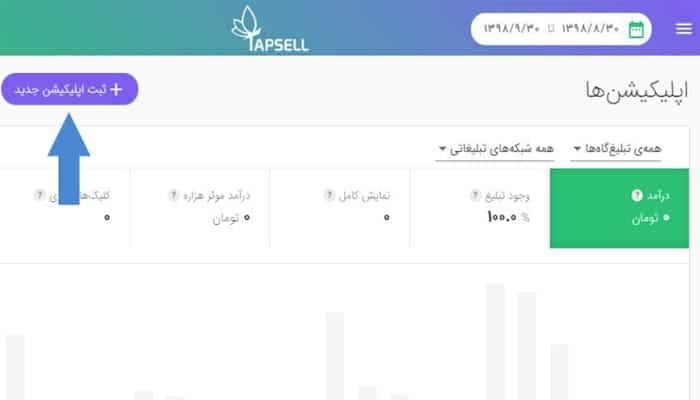
 After entering the apps page, it's time to register our app.
Registering an App on the Tapsell Ads Website:
After entering the apps page, it's time to register our app.
Registering an App on the Tapsell Ads Website:
 Setting up in-app advertising
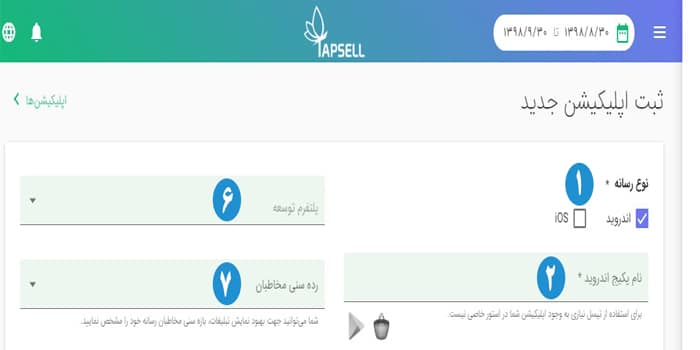
Now, fill in the required information as shown in the image below.
Setting up in-app advertising
Now, fill in the required information as shown in the image below.
 Setting up in-app advertising
Number 1: Since your app is Android, select the Android option here.
Number 2: In this section, enter the app package name that you previously provided in the download section of the ServerNet panel.
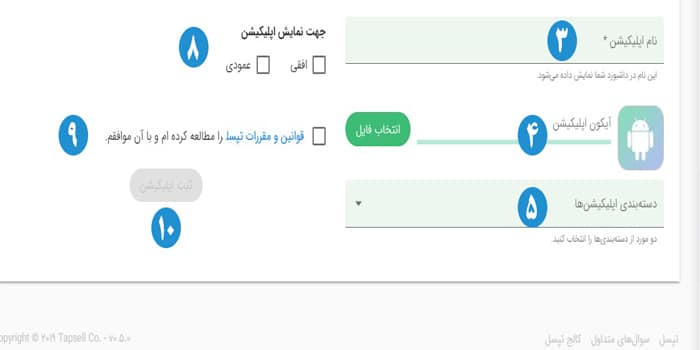
Number 3: You need to enter your app's name in this section.
Number 4: Here, you can set an icon for your app.
Number 5: In this section, you need to specify the category of your app.
Number 6: Here, you must select the "puzzle" option from the available choices.
Number 7: In this section, you need to determine the target age group for your app.
Number 8: You need to specify the app's display orientation, whether it's horizontal or vertical.
Number 9: You must also confirm this option.
Number 10: Finally, click the "Register App" button.
After registering the app, you'll be taken to the page below.
Setting up in-app advertising
Number 1: Since your app is Android, select the Android option here.
Number 2: In this section, enter the app package name that you previously provided in the download section of the ServerNet panel.
Number 3: You need to enter your app's name in this section.
Number 4: Here, you can set an icon for your app.
Number 5: In this section, you need to specify the category of your app.
Number 6: Here, you must select the "puzzle" option from the available choices.
Number 7: In this section, you need to determine the target age group for your app.
Number 8: You need to specify the app's display orientation, whether it's horizontal or vertical.
Number 9: You must also confirm this option.
Number 10: Finally, click the "Register App" button.
After registering the app, you'll be taken to the page below.
 Setting up in-app advertising
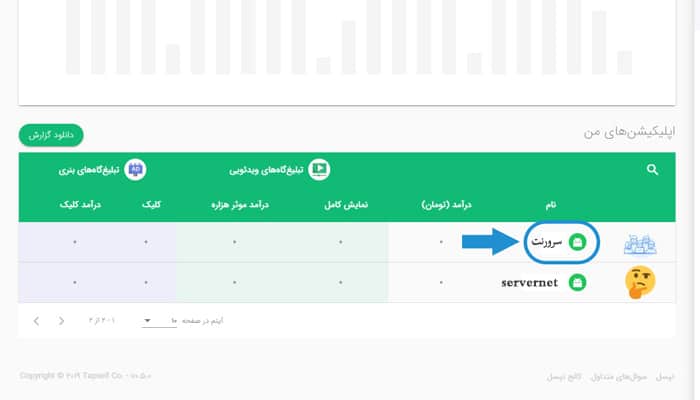
Click on your app's name to go to the page below.
Setting up in-app advertising
Click on your app's name to go to the page below.
 Setting up in-app advertising
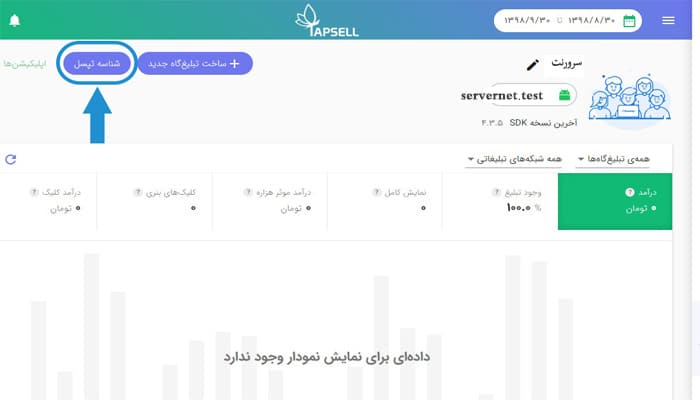
Click on the option highlighted in the image above to get your Tapsell ID.
Setting up in-app advertising
Click on the option highlighted in the image above to get your Tapsell ID.
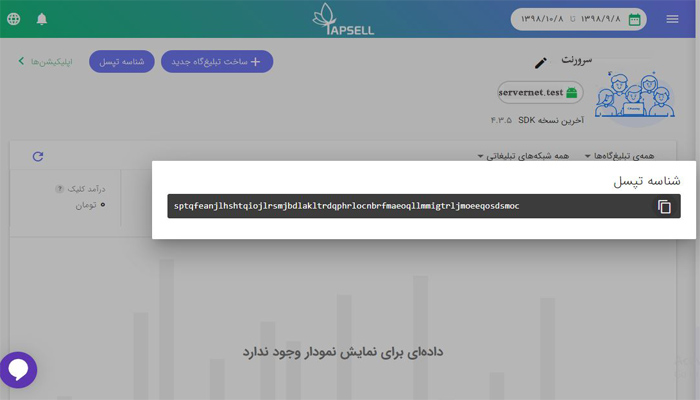 Setting up in-app advertising
Copy the displayed ID and paste it into the appropriate field in the Tapsell ads plugin settings in the ServerNet panel.
Now, let's move on to the next step.
Creating a New Ad Zone:
Setting up in-app advertising
Copy the displayed ID and paste it into the appropriate field in the Tapsell ads plugin settings in the ServerNet panel.
Now, let's move on to the next step.
Creating a New Ad Zone:
 Setting up in-app advertising
 Setting up in-app advertising
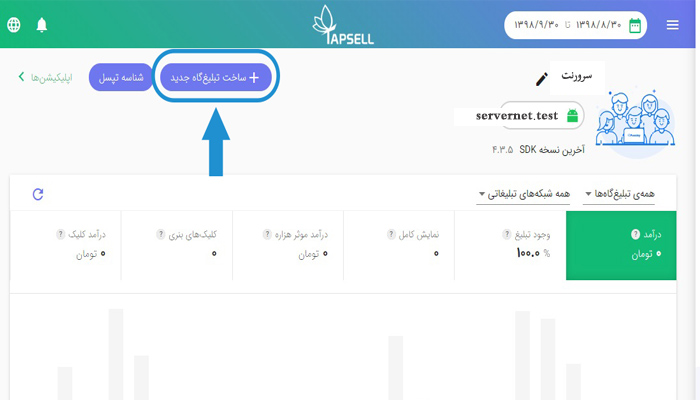
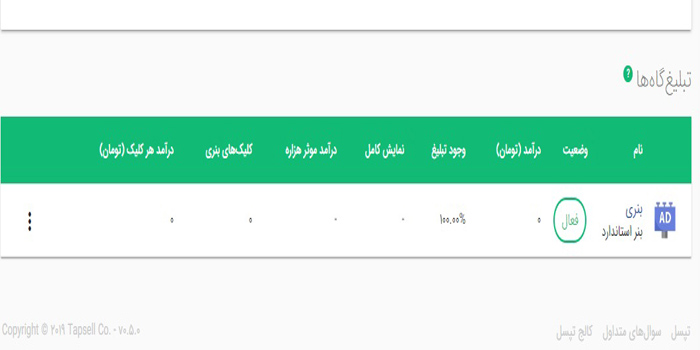
To create a new ad zone, click on the button highlighted in the image above.
Setting up in-app advertising
To create a new ad zone, click on the button highlighted in the image above.
 Setting up in-app advertising
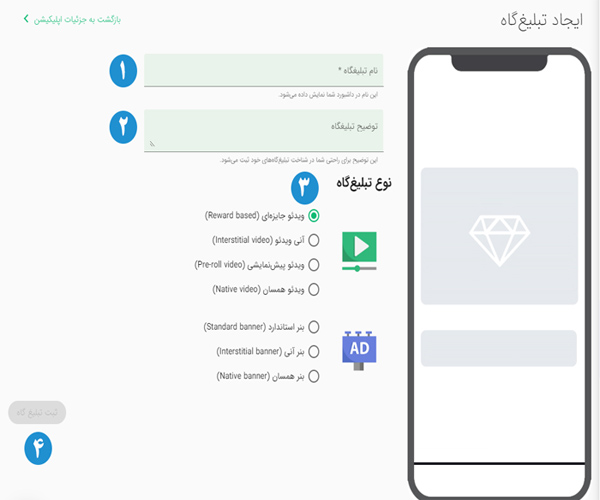
As I explained at the beginning of this post, the ServerNet Tapsell ads plugin only supports 3 types of ads from the Tapsell website.
In Section 1, you need to specify a name for this ad zone. This name is only for your own reference to distinguish between multiple ad zones and is only displayed in the Tapsell panel.
In Section 2, you can add a description that will be displayed to you.
In Section 3 (Ad Zone Type), make sure to only use the ad types that ServerNet supports; otherwise, your ads won't be displayed.
Finally, click on Section 4 to register your ad zone.
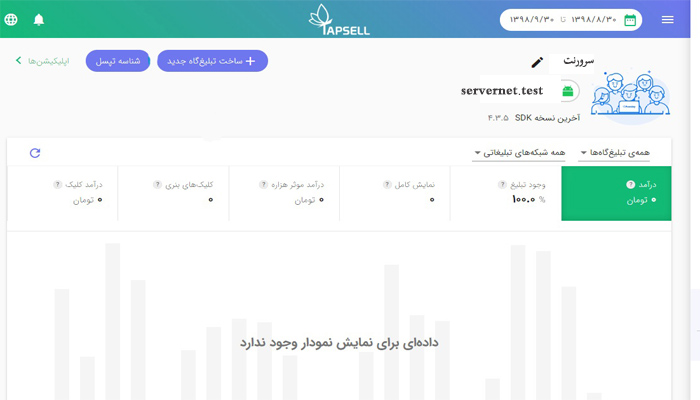
After registering the ad zone, you'll be taken to the page below.
Setting up in-app advertising
As I explained at the beginning of this post, the ServerNet Tapsell ads plugin only supports 3 types of ads from the Tapsell website.
In Section 1, you need to specify a name for this ad zone. This name is only for your own reference to distinguish between multiple ad zones and is only displayed in the Tapsell panel.
In Section 2, you can add a description that will be displayed to you.
In Section 3 (Ad Zone Type), make sure to only use the ad types that ServerNet supports; otherwise, your ads won't be displayed.
Finally, click on Section 4 to register your ad zone.
After registering the ad zone, you'll be taken to the page below.
 Setting up in-app advertising
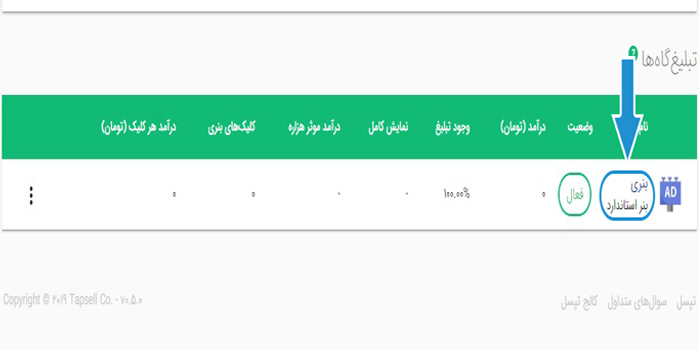
Now, click on your ad zone's name to access its settings.
Setting up in-app advertising
Now, click on your ad zone's name to access its settings.
 Setting up in-app advertising
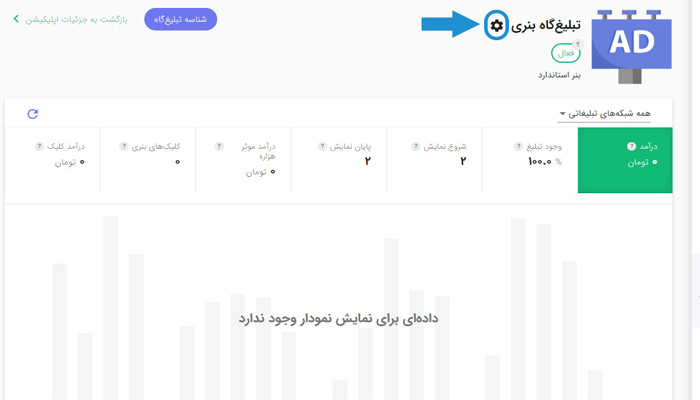
Clicking on the highlighted option will display a menu with 4 options.
Setting up in-app advertising
Clicking on the highlighted option will display a menu with 4 options.
 Setting up in-app advertising
Number 1: Clicking this option will deactivate your ad zone, and its ads will no longer be displayed.
Number 2: Using this option, you can enable test mode for the ad zone. Otherwise, ads won't be displayed on your app until it's published on a marketplace. Test mode helps you perform the necessary checks before releasing the app.
Number 3: Using this option, you can edit your ad zone's information.
Number 4: This option allows you to delete the ad zone.
Getting the Ad Zone ID:
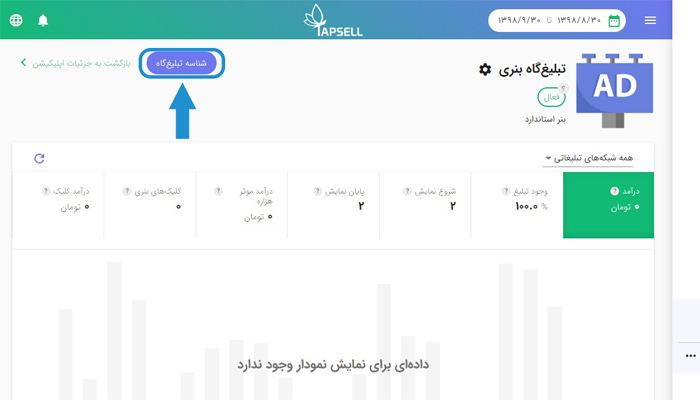
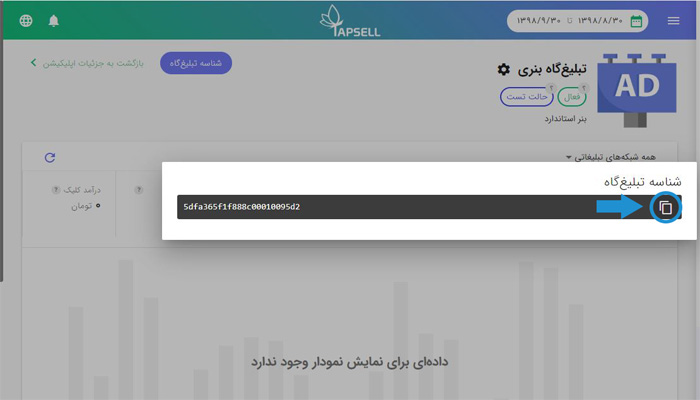
Now, use the button highlighted in the image below to get the ID for this ad zone.
Setting up in-app advertising
Number 1: Clicking this option will deactivate your ad zone, and its ads will no longer be displayed.
Number 2: Using this option, you can enable test mode for the ad zone. Otherwise, ads won't be displayed on your app until it's published on a marketplace. Test mode helps you perform the necessary checks before releasing the app.
Number 3: Using this option, you can edit your ad zone's information.
Number 4: This option allows you to delete the ad zone.
Getting the Ad Zone ID:
Now, use the button highlighted in the image below to get the ID for this ad zone.
 Setting up in-app advertising
Copy the displayed ID and paste it into the appropriate field in the Tapsell plugin settings in the ServerNet panel.
Setting up in-app advertising
Copy the displayed ID and paste it into the appropriate field in the Tapsell plugin settings in the ServerNet panel.
 Setting up in-app advertising
Now it's time to download and install your app.
Now that Tapsell ads are being displayed on your app, publish it and start earning money.
I hope this tutorial was helpful for you.
Right now, log in to your panel and add this plugin to your app.
Setting up in-app advertising
Now it's time to download and install your app.
Now that Tapsell ads are being displayed on your app, publish it and start earning money.
I hope this tutorial was helpful for you.
Right now, log in to your panel and add this plugin to your app.
Comments 0
No comments yet — be the first!